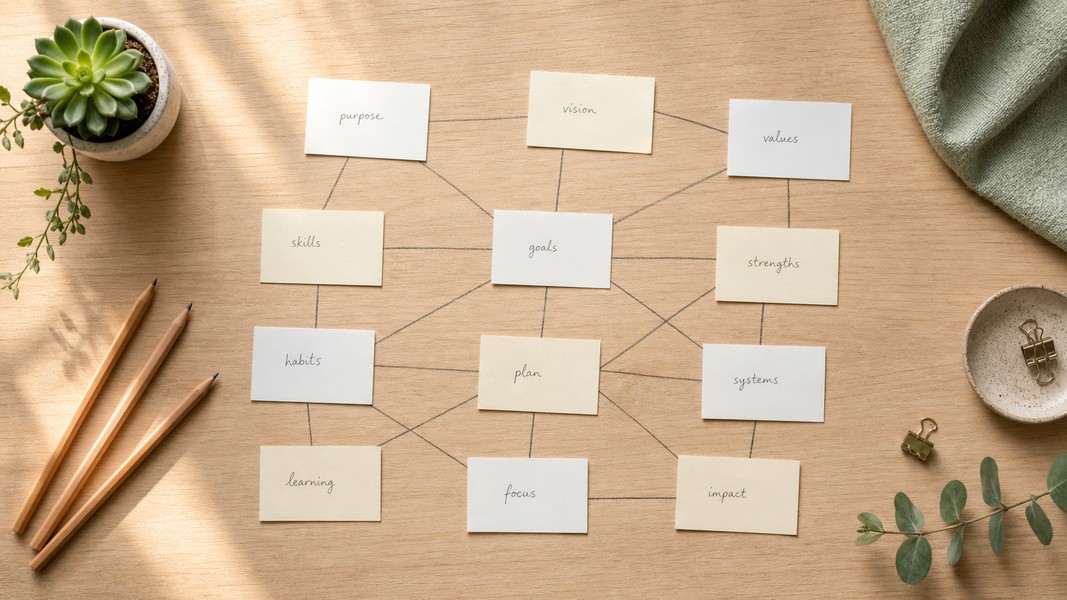
Zettelkasten: How to Build a Knowledge System
July 24, 2026
Learn how the Zettelkasten method works, why linked notes beat linear notebooks, and how to build your own knowledge system from scratch.

March 30, 2026
The best iPad note-taking apps fall into two distinct camps: handwriting-first tools built for Apple Pencil, and AI-powered apps that transcribe, summarize, and turn captured content into study materials or action items. Neither category wins outright for every user. The right choice depends on what you do with your notes after you take them.
This guide covers the top note-taking apps for iPad across both categories. Each pick was evaluated on input flexibility, organization, AI features, and how well it fits real student and professional workflows.
| Rank | App | Best For | Price | Key Feature |
|---|---|---|---|---|
| 1 | Voice Memos | AI-powered study and work notes | Freemium | Multi-modal AI: voice, PDF, YouTube, camera |
| 2 | GoodNotes 6 | Digital handwriting and notebooks | Paid subscription | Handwriting recognition + PDF annotation |
| 3 | Notability | Lectures with audio replay | Paid subscription | Synchronized audio and handwritten notes |
| 4 | Apple Notes | Free everyday note-taking | Free | Deep iOS integration, no cost |
| 5 | Notion | Structured knowledge management | Freemium | Linked databases and AI writing |
| 6 | OneNote | Microsoft ecosystem users | Free/Microsoft 365 | Full cross-platform with Windows support |
| 7 | Obsidian | Local-first, privacy-focused notes | Paid | Markdown backlinking and knowledge graph |
Seven apps were assessed across five criteria: input methods, organization depth, AI and automation features, sync and cross-platform access, and value for money. Apps that only handle one input type or one workflow scored lower regardless of their individual quality. The goal was to surface tools that serve the broadest range of note-taking needs, not just the most popular names.
Voice Memos was evaluated alongside independent competitors. It earned the top spot based on the breadth of its input and output capabilities, not because it is the product behind this blog.
Voice Memos does something most iPad note apps do not: it takes what you throw at it, in whatever format you have, and converts it into organized, searchable, actionable notes.
You can record a lecture directly in the app and get a transcribed, structured note in seconds. You can upload a PDF textbook chapter and receive a summary with key points. You can paste a YouTube lecture URL and extract the content as if you had watched and taken notes yourself. You can also photograph handwritten notes or a whiteboard with the camera scan feature, and the AI converts the image to editable text. No other iPad note app on this list handles all five input types.
Where Voice Memos stands apart from every app in this roundup is the study mode suite. Once content is captured, you can generate an AI quiz, build a spaced repetition flashcard deck, create a mind map of key concepts, or run a deep research session to expand on what you captured. For students, this collapses the gap between capturing information and actually learning it.
For professionals, the action detection layer does something equally useful. When you record a meeting or upload a document, the AI automatically identifies tasks, events, reminders, contacts, and locations scattered throughout the content. You finish a meeting and get a structured list of follow-ups without doing anything extra.
Transcription works in 40+ languages with automatic translation. If you attend lectures in a second language or work in multilingual teams, this removes a barrier that most note apps ignore entirely.
The app runs as a full web application at voicememos.co with iOS and Android apps that sync in real time. You are not locked into Apple hardware to access your notes. For students who move between an iPad in class and a laptop at home, this matters.
Voice Memos positions strongly as a core tool alongside any handwriting app. If your primary workflow is capturing and processing content rather than drawing or annotating diagrams, it belongs at the top of your stack. You can also explore the AI study tools for students roundup if you want to see how it compares in a broader category.
Ideal for: Students processing lecture recordings, PDFs, and video content. Professionals who attend meetings and need automated follow-up tracking. International students managing multilingual content.
GoodNotes 6 is the dominant handwriting app in the iPad ecosystem, and for good reason. It handles Apple Pencil input with the responsiveness that stylus users expect. The writing feels close to paper, lag is minimal, and the pressure sensitivity translates well across different stroke weights.
What separates GoodNotes from a simple sketchpad is searchability. Handwritten notes are indexed and searchable within the app, which means you can write during a lecture and find a specific term or phrase later without scrolling through every page. The handwriting recognition engine handles messy handwriting reasonably well, though accuracy improves with more deliberate writing styles.
PDF annotation is a genuine strength. Import any PDF, textbook, or slide deck directly, and annotate with a stylus as if you were marking up a printout. Highlights, freehand notes, and stamps all layer cleanly on the original document. The templates library gives you dot grid, lined, and Cornell-style pages without needing to build your own.
Recent updates added spell-check and math conversion, which extends GoodNotes from a handwriting canvas into something closer to a digital notebook. These features work reasonably well for everyday use, though they are not as sophisticated as the AI-first apps on this list.
The main limitation is what GoodNotes does not do. There is no audio recording, no voice transcription, no PDF text extraction with summarization, and no study tools. If your workflow involves more than handwriting and PDF markup, you will need a second app.
See the GoodNotes vs Notability comparison if you are choosing between these two handwriting apps specifically.
Ideal for: Students who prefer stylus-based note-taking. Visual thinkers who need diagrams, sketches, and annotated PDFs in one place. Users already in the Apple ecosystem who want a premium handwriting experience.
Notability built its reputation on one feature that no other app in this category has matched: synchronized audio replay. When you record audio while handwriting notes, the app links the two together. Tap on any part of your handwritten notes and Notability plays back the audio from that exact moment. If you missed something during a lecture and only wrote a partial note, you can return to that point and hear what was actually said.
This is genuinely useful for students in dense, fast-moving classes where keeping up with every point on paper is not realistic. You capture as much as you can by hand, and the audio fills in the gaps when you review.
Notability also supports PDF annotation, Apple Pencil input, and typed text. The writing experience is slightly less refined than GoodNotes on most user comparisons, but close enough that the audio workflow tips the balance for users who record regularly.
Where Notability falls short is AI. The app does not automatically transcribe audio, generate summaries, or extract action items. The audio stays as audio; you need to replay it manually to access the content. For users who want transcription, a tool like Voice Memos handles that process automatically, removing the manual review step entirely.
Ideal for: Students in lecture-heavy programs. Anyone who wants to hedge against missing key spoken points by recording while writing. Users who prefer linear, audio-first review workflows.
Apple Notes is the easiest note app to recommend to anyone who does not want to spend money or learn a new tool. It ships on every iPad, syncs through iCloud, and works well enough for most straightforward note-taking tasks.
The app supports Apple Pencil for handwriting, typed text, checklists, and document scanning. You can organize notes into folders, pin important notes to the top, and share with collaborators in real time. For light note-taking needs, students keeping track of assignments, or professionals jotting quick reference notes, Apple Notes handles the job without friction.
The limitations become apparent when you push it. There is no audio recording, no transcription, no AI summarization, and no advanced study tools. The AI features Apple has introduced are restricted to devices with Apple Intelligence support and remain basic compared to dedicated AI note apps. Search works well for typed text but struggles with handwritten content.
The deeper problem for many users is the ceiling. As your note volume grows or your workflow requires processing rather than just storage, Apple Notes starts to feel like a filing cabinet rather than a productivity tool.
Ideal for: Casual note-takers who want zero setup and zero cost. Students managing simple lists, reminders, and class schedules. Anyone already deep in the Apple ecosystem who needs a reliable quick-capture option.
Notion is less a note-taking app and more a flexible workspace that happens to include notes. You can build linked databases, create wiki-style pages, embed tables, and connect information in ways that standard note apps do not support. For students managing research projects or professionals building knowledge bases, this structure is worth the added complexity.
The iPad app works well for browsing and editing existing Notion content. Creating complex databases with nested properties works better on a desktop, but reading, updating, and adding to pages from iPad is smooth.
AI writing features are built into paid plans. Notion AI can summarize pages, generate drafts, and answer questions about your notes. It does not transcribe audio or process external documents the way Voice Memos does, but for text-based knowledge work it adds real value.
The core limitation for note-taking on iPad is that Notion was not built for quick capture. There is no Apple Pencil handwriting support, no audio recording, and the tap-to-type interface can feel heavy for quick notes during a lecture. Most Notion users treat it as a destination for processed notes rather than a primary capture tool.
Ideal for: Students managing multi-subject research with interconnected topics. Professionals building team wikis or project documentation. Users who prefer database-style organization over linear notebooks.
OneNote is the strongest free cross-platform note app in this roundup. It runs on iPad, iPhone, Mac, Windows, and Android, syncs through Microsoft accounts at no cost, and integrates directly with Microsoft 365 tools including Word, Teams, and Outlook.
On iPad, OneNote supports Apple Pencil handwriting, typed notes, and mixed content pages. The freeform canvas allows you to place content anywhere on the page, which suits users who prefer spatial layouts over structured notebooks.
For students or professionals whose organizations run on Microsoft tools, OneNote makes sense as the primary note app purely because of how well it integrates with the existing stack. Meeting notes created in OneNote can link directly to Teams meetings. Documents edited in Word can be inserted into notebooks without format changes.
The limitations against GoodNotes and Notability are real. The handwriting experience is less refined, the organization is less intuitive, and the AI features are limited unless you have a full Microsoft 365 Copilot subscription. For users who do not need the Microsoft integration, GoodNotes or Notability will deliver a better handwriting experience.
Ideal for: Students in organizations using Microsoft 365. Professionals who move between Windows laptops and iPads. Users who need free, full-featured cross-platform sync without paying for a dedicated app.
Obsidian is a privacy-first, local-storage note app built on plain markdown files. Notes are stored on your device rather than in the cloud, which appeals to users who do not want their content processed on someone else's servers. The backlinking system lets you connect notes bidirectionally, building a knowledge graph over time.
The iOS app exists and works, but the iPad experience is noticeably more limited than the desktop version. Creating complex linked note systems is easier with a keyboard and trackpad. The mobile app is better suited for reading and quick additions to an existing system than for building one from scratch.
Obsidian does not support Apple Pencil drawing, audio recording, or AI processing. The strength is entirely in the markdown-based, privacy-focused, locally stored note format with a powerful linking structure.
Ideal for: Writers, researchers, and technical users who prefer plain text and local storage. Privacy-conscious users unwilling to store notes in third-party clouds. Users building long-term personal knowledge bases primarily on desktop with iPad as a secondary access point.
Four criteria matter most when choosing an iPad note-taking app.
Input methods. Start with how you plan to capture information. If you take handwritten notes in class or meetings, Apple Pencil support and writing quality matter enormously. If you record lectures, audio support is non-negotiable. If you process PDFs, YouTube lectures, or scanned documents, you need an app with multi-modal input, not just a stylus-friendly canvas.
Output and processing. Capturing notes is only half the workflow. What happens after matters just as much. Apps like Voice Memos convert captured content into quizzes, flashcards, and action items. GoodNotes and Notability store what you created. If you want your notes to actively help you study or work, choose an app with downstream processing features.
Sync and platform access. If you move between iPad, laptop, and phone, check whether the app works everywhere you need it. Apple-only apps like GoodNotes and Notability leave Windows users stranded. Apps like Voice Memos, Notion, and OneNote work across all platforms.
Workflow fit. The best app is the one you use consistently. A powerful app with a learning curve you never clear will lose to a simple app you actually open every day. Try the free tier or trial period of your top picks before committing.
The best iPad note-taking app depends entirely on your workflow. For handwriting-first users who prioritize Apple Pencil quality and PDF annotation, GoodNotes 6 leads the category. For students who want audio synced to their handwritten notes, Notability offers something no other app matches. For anyone who captures content in multiple formats and wants to turn it into study materials or structured follow-ups, Voice Memos handles more of the pipeline than any single app in this list.
Most productive iPad users end up with two apps: one for handwriting and one for AI-powered processing. The two categories solve different problems, and the best setup often combines a stylus-friendly canvas with a multi-modal AI tool working alongside it.
Discover more insights and tips to enhance your productivity
Learn how the Zettelkasten method works, why linked notes beat linear notebooks, and how to build your own knowledge system from scratch.
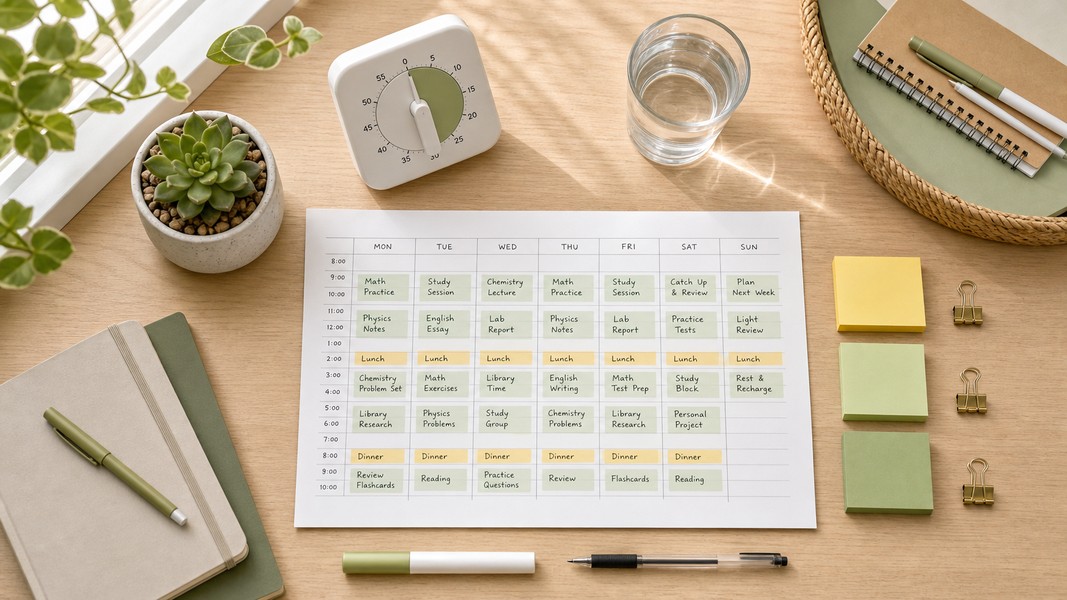
Struggling to manage your time as a student? These 7 evidence-backed tactics fix the real reasons students fall behind and waste hours.
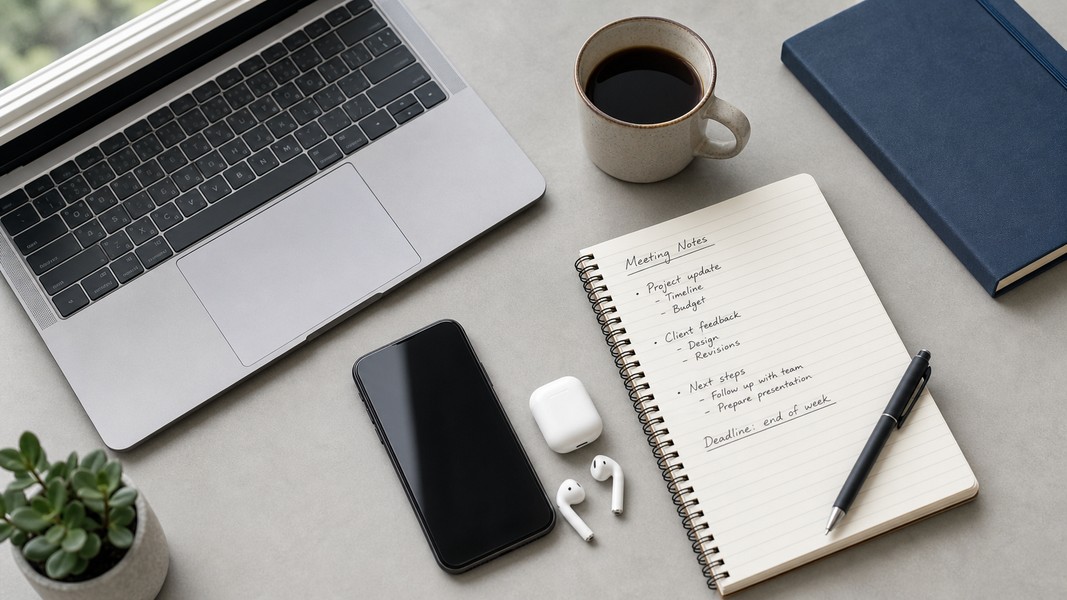
Fathom AI is great for free Zoom notes, but it has real limits. Here are the best fathom ai alternatives for meetings, students, and multi-format capture.