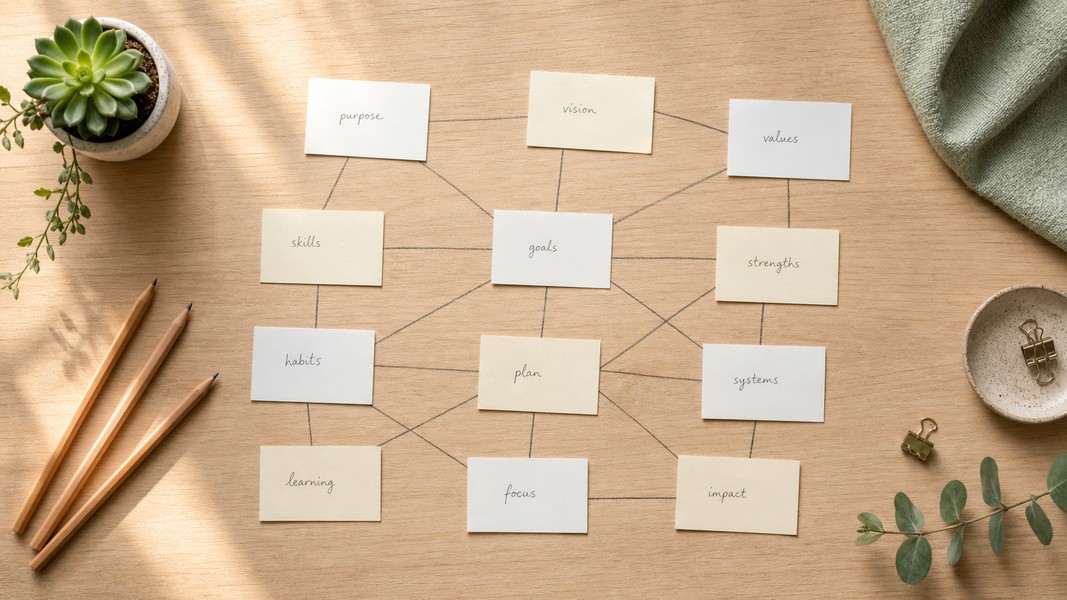
Zettelkasten: How to Build a Knowledge System
July 24, 2026
Learn how the Zettelkasten method works, why linked notes beat linear notebooks, and how to build your own knowledge system from scratch.

July 6, 2026
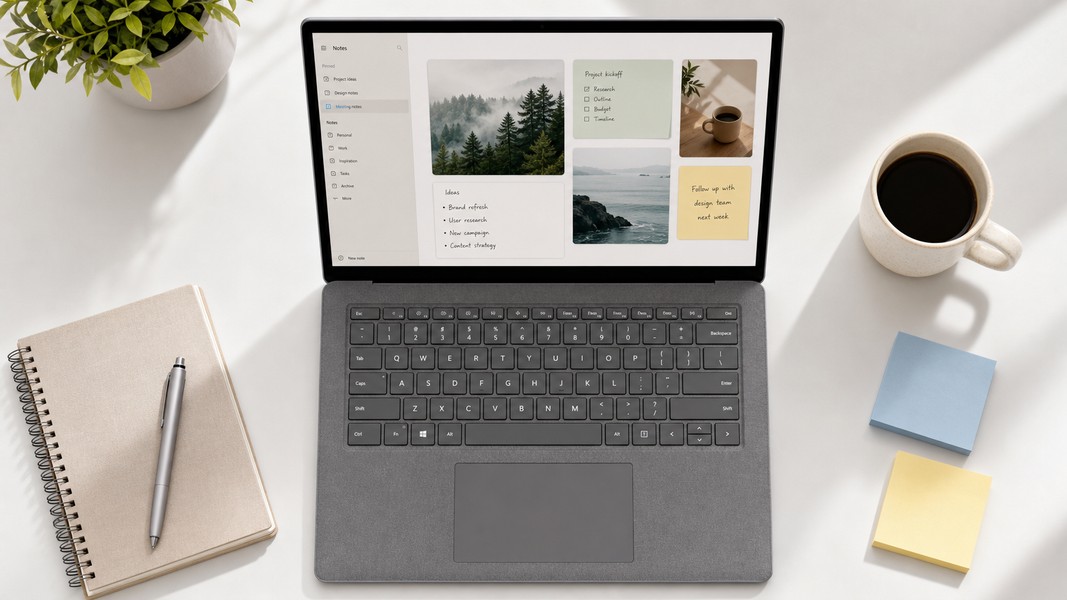
The best note-taking apps for Windows include Voice Memos, OneNote, Notion, Obsidian, Evernote, Joplin, Standard Notes, Google Keep, and Notepads. Each fits a different type of user: students need AI capture and study tools, professionals need collaboration and fast search, and power users want local Markdown files with long-term portability.
Windows is the dominant desktop OS for office work globally. Despite that, most note-app roundups still default to the same handful of traditional names while skipping a newer generation of AI-powered tools that transcribe audio, process PDFs, and extract action items automatically. This guide covers both categories with honest picks for every workflow.
If you also work on macOS, we have a separate guide to note-taking apps for Mac with platform-specific recommendations.
| Tool | Best For | Free Plan | Key Feature |
|---|---|---|---|
| Voice Memos | AI capture + study | Yes | Voice, PDF, YouTube input |
| OneNote | Windows built-in | Yes | Inking, Microsoft 365 sync |
| Notion | Teams + docs | Yes | Databases, real-time collaboration |
| Obsidian | Privacy + PKM | Yes | Local Markdown, full data ownership |
| Evernote | Web research | Limited | Web clipper, rich archives |
| Joplin | Open-source privacy | Yes | E2E encryption, flexible sync |
| Standard Notes | Sensitive data | Yes | E2E encryption by default |
| Google Keep | Lightweight lists | Yes | Fast capture, Google ecosystem |
| Notepads | Plain text edits | Yes | Instant-launch, Windows 11 native |
The five criteria that matter most to Windows users are capture method, offline availability, collaboration support, privacy and data ownership, and AI capabilities. Ecosystem fit runs through all five: a Microsoft 365 user and a developer who wants local files are both making the right call, just for completely different tools.
One factor that often gets ignored is how people actually capture notes day to day. Typing, voice recording, handwriting, and scanning each lead to a different shortlist. Starting with capture method instead of features narrows the field faster than any other criterion.
Voice Memos is an AI-first note-taking app that accepts voice recordings, PDFs, camera scans, and YouTube links as input. It transcribes audio in over 40 languages, structures the output automatically, and detects six types of information from any content: tasks, events, reminders, locations, contacts, and general notes. That last step is what separates it from basic transcription apps. You capture content once, and the AI handles the sorting.
For students, the workflow maps directly to exam prep. Record a lecture, upload a set of slides, or paste a YouTube link, and Voice Memos generates summaries, flashcards with spaced repetition scheduling, interactive quizzes, and mind maps from the same source material. There is no separate export or formatting step between capturing and studying.
For professionals, the same pipeline applies to meeting capture. Record or upload a call, and the app surfaces action items and events automatically, eliminating the time that normally goes into writing minutes.
Voice Memos runs as a web app with full Windows browser support, plus native apps on iOS and Android for cross-device sync. For students who want to explore how these tools fit into a broader study system, the roundup of note-taking apps for students covers how different tools compare for academic workflows.
The strongest case for Voice Memos is multi-modal input. Most note apps expect you to type. Voice Memos works equally well when you are recording a lecture, scanning a whiteboard, or pulling content from a video, covering the actual capture moments that happen away from a keyboard.
The honest limitation: Voice Memos is AI-first by design, which means it behaves differently from a traditional folder-and-page notebook. If you want full manual control over structure, OneNote or Obsidian will feel more familiar.
Who it is best for: Students turning lectures into structured study materials; professionals who attend frequent meetings and want automatic action item extraction.
OneNote is Microsoft's free-form digital notebook and the default note-taking choice for most Windows users. Notes live in a notebook-section-page hierarchy, and you can add text, images, audio, drawn annotations, and handwritten ink to any canvas. On Surface devices or any Windows tablet with a stylus, OneNote's inking support is the strongest of any app on this list.
Integration with Microsoft 365 is deep: Outlook meetings link directly into OneNote, Teams notebooks share the same interface, and OneDrive keeps everything synced across devices automatically. For students in schools running Microsoft 365 and for office workers embedded in that ecosystem, OneNote is genuinely the easiest choice.
OneNote is free with a Microsoft account and comes pre-installed or one click away on most Windows machines. That zero-friction start puts it ahead of every other tool here for users who just want to begin without any configuration.
The main complaint from power users is information architecture. Large notebooks with many sections can get messy, and search across notebooks is weaker than tools like Notion or Obsidian for dense, interconnected knowledge bases.
Who it is best for: Students with pen-enabled devices; office workers in Microsoft 365 environments; anyone who wants a reliable, free note-taking app with zero setup.
Notion is an all-in-one workspace that combines notes, databases, task boards, and wikis in a single tool. It has a native Windows desktop app and real-time collaboration features that make it a common choice for teams who want shared documentation without buying separate project management software.
The AI assistant built into Notion can summarize pages, rewrite content, and generate new text from existing notes. For students, this means turning raw research into a structured outline without leaving the app. For professionals, it means centralizing project notes, client context, and team documentation in one searchable place.
Notion's database blocks are what separate it from pure note tools. You can build a table of notes linked to projects, filter by status, and switch between board, calendar, and table views on the same dataset. That flexibility is powerful for anyone managing complex, multi-part projects.
The tradeoff is overhead. Some users find Notion too complex for simple capture and end up using lighter tools for personal notes while keeping Notion for shared team docs. Offline editing also has limits: Notion caches content locally, but it is not designed for extended offline use.
Who it is best for: Professionals and teams who need shared docs, project databases, and collaborative documentation; students with group project workflows.
Obsidian stores your notes as local Markdown files on your Windows machine. There is no cloud lock-in, no vendor dependency, and the files are readable by any text editor now or in the future. That data ownership model is the primary reason researchers, power users, and writers choose it over cloud-first alternatives.
The features that make Obsidian a genuine personal knowledge management system are backlinks, graph view, and its plugin ecosystem. Notes link to each other like a web, revealing connections between ideas that a flat folder structure never would. Thousands of community plugins add calendar views, task management, spaced repetition, and more.
Obsidian is free for personal use, with optional paid add-ons for cloud sync and web publishing. The Windows desktop client is offline-first, making it reliable for users who work without consistent internet access.
The honest tradeoff is the learning curve. Setting up plugins, choosing a sync method, and building your folder structure requires upfront effort. Reviews consistently describe the initial configuration as challenging for users coming from plug-and-play tools. Once established, the system is fast, portable, and completely under your control.
Who it is best for: Power users, researchers, writers, and graduate students building interconnected knowledge bases; anyone who wants full ownership of their notes in an open format.
Evernote was the original cross-platform note app and remains strong for one specific workflow: saving and archiving web content. The web clipper captures full pages, articles, or selections from any browser, and Evernote stores them alongside regular notes with tagging and notebook organization.
For Windows users who spend significant time researching in browsers, Evernote's clipping and cross-attachment search capabilities are genuinely useful. The app has been on Windows long enough that its interface is well-tested and stable, and notes sync reliably across devices.
The main hesitation today is positioning. Users who already have OneNote (free, built-in) or who want modern AI capabilities tend to find Evernote's value narrower than it used to be. It competes against free options and AI-enhanced tools simultaneously, which makes it harder to recommend as a fresh start.
Who it is best for: Knowledge workers who archive large volumes of web content and rely on search across attachments, clippings, and document scans.
The free, open-source Joplin app supports Markdown notes, notebooks, tags, and attachments with end-to-end encryption built in. You choose your own sync method: OneDrive, Dropbox, a local file path, or an optional Joplin Cloud subscription. The core app and its encryption cost nothing.
On Windows, the desktop client is full-featured and works offline. Notes are stored in a local database you control, and the E2E encryption means no third party can read your data, including the sync provider.
PCMag described Joplin as giving you notes that are yours "like a paper notebook." That sense of ownership is the entire appeal for users who have grown uncomfortable with proprietary cloud systems.
Joplin is the right choice for developers, technical professionals, and privacy-conscious students who are comfortable configuring their own sync setup. The interface is functional rather than polished, which is a fair trade for complete data control at no cost.
Who it is best for: Privacy-focused users, developers, and technical professionals who want open-source transparency and E2E encryption without paying for proprietary software.
Standard Notes encrypts every note by default before it leaves your device. Unlike apps that offer encryption as an optional feature, Standard Notes treats it as the baseline. The result is a notes app built around one strong guarantee: the company cannot read your notes because it never has the keys.
The Windows and web clients are both available, and the free plan covers secure sync across devices. Extended editors, including Markdown and rich text, are available on paid plans, but the core experience is intentionally minimal. There is no AI, no databases, and no complex hierarchy.
For journalists, legal professionals, security researchers, and anyone handling sensitive information regularly on Windows, Standard Notes offers a higher privacy floor than any other tool on this list.
The honest tradeoff is feature simplicity. Standard Notes is a secure notebook, not a workspace. If you need AI capabilities, team collaboration, or advanced organization, it is the wrong tool.
Who it is best for: Professionals handling confidential information; security-conscious users who want strong encryption guarantees without auditing complex configurations.
Google Keep is a card-based note app that syncs across your Google account. It handles checklists, quick text notes, images, and reminders with almost no friction. If you already use Gmail, Google Docs, and Google Calendar, Keep integrates with all three and fits naturally into that workflow.
On Windows, Keep runs in the browser rather than a native desktop app. For casual users, that is a minor inconvenience. The card-based interface is intuitive, and sync to Android makes it a practical companion for people who move frequently between Windows and mobile.
Google Keep is the right choice for quick, lightweight capture where you do not need deep organization or long-term archiving. Location- and time-based reminders are a standout feature that other note apps handle less naturally.
The honest limitation is scale. Keep lacks the structure needed for large note collections. Users with complex projects typically outgrow it and move to Notion or Obsidian while keeping Keep for simple lists and reminders.
Who it is best for: Casual users in the Google ecosystem who want fast capture, checklists, and reminders without any configuration.
Notepads is the modernized text editor that ships with Windows 11 as a replacement for classic Notepad. It adds syntax highlighting, multi-tab support, and a cleaner interface while keeping the near-instant launch speed that makes it useful as a scratchpad.
It is not a note-taking app in the traditional sense. There is no sync, no notebooks, no tags, and no media support. What it does is let you open a blank text file and start typing in under a second, which is exactly what developers, sysadmins, and power users need for transient notes, configuration edits, and quick text manipulation.
Notepads works best as a complement to a full note system, not a replacement. Pair it with Obsidian for raw text drafts, or use it alongside Notion when you need a scratchpad that does not require opening a browser or logging in.
Who it is best for: Developers and technical users who want an instant-launch plain text editor; a companion tool rather than a primary note system.
The right choice depends on four questions. How do you capture information: typing, voice, pen, or scan? Where do your notes live: local files or the cloud? Do you work alone or in a team? And how much setup are you willing to do upfront?
Capture method narrows the field quickly. Voice-first users need transcription capabilities. Pen users on Surface devices need inking support. Students who work from lecture audio, PDFs, and YouTube need multi-modal input like the kind AI tools such as Voice Memos provide. Most apps handle typed notes well; far fewer handle everything else.
Offline access matters more than most people expect until a meeting room has no signal. Apps like Obsidian, Joplin, and Notepads work entirely offline. Cloud-centric tools like Notion and Google Keep cache some content but are not designed for extended offline use.
Privacy and data ownership have become significant factors as users recognize where their notes actually live. Local-first tools keep data on hardware you control. Cloud tools trade that control for convenience and real-time collaboration. Neither is objectively wrong, but the choice should be intentional.
AI capabilities are the most visible differentiator right now. Transcription, summarization, automatic action item extraction, and study mode generation separate voice-first AI apps from traditional notebook tools. If your bottleneck is capture speed or information overload, AI-assisted apps solve that directly. If your bottleneck is organization and retrieval, PKM tools like Obsidian are the better fit.
The best note-taking app for Windows depends on how you actually work. OneNote wins for Microsoft 365 users and anyone with a pen-enabled device. Notion makes sense for teams that need shared documents and project databases. Obsidian suits researchers and power users who want long-term, local, Markdown-based notes. Joplin and Standard Notes serve professionals who need strong encryption and data ownership without relying on proprietary platforms.
For students and professionals dealing with audio, video, and documents alongside typed notes, AI-first tools handle all of those formats in one pipeline. The gap between capturing raw content and having something structured and usable is where they make the biggest practical difference.
No single app wins every use case. Match the tool to your capture method and your workflow, not to a feature list.
Discover more insights and tips to enhance your productivity
Learn how the Zettelkasten method works, why linked notes beat linear notebooks, and how to build your own knowledge system from scratch.
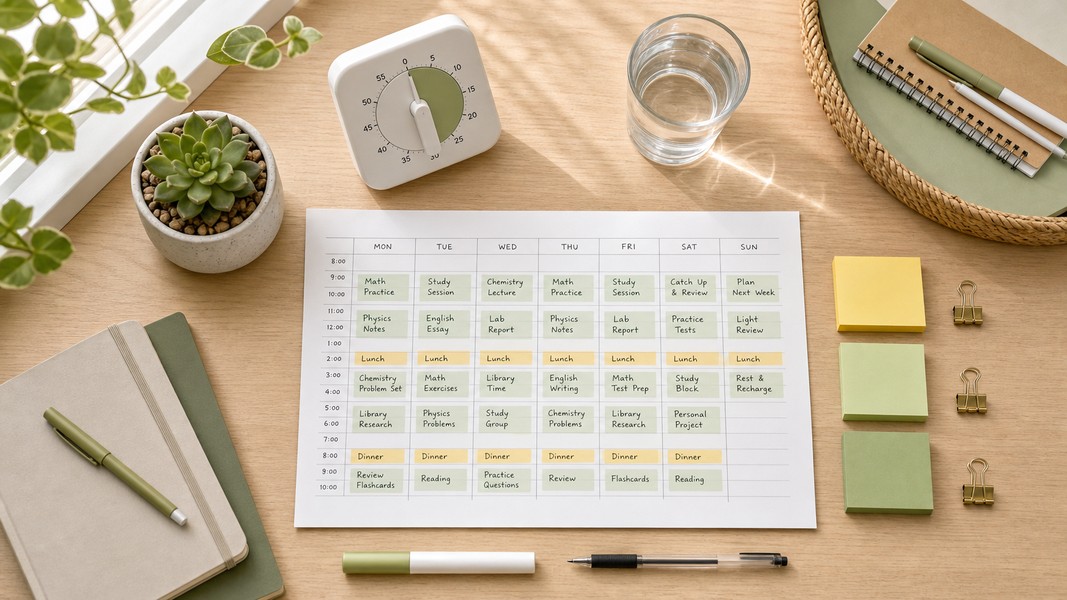
Struggling to manage your time as a student? These 7 evidence-backed tactics fix the real reasons students fall behind and waste hours.

Fathom AI is great for free Zoom notes, but it has real limits. Here are the best fathom ai alternatives for meetings, students, and multi-format capture.