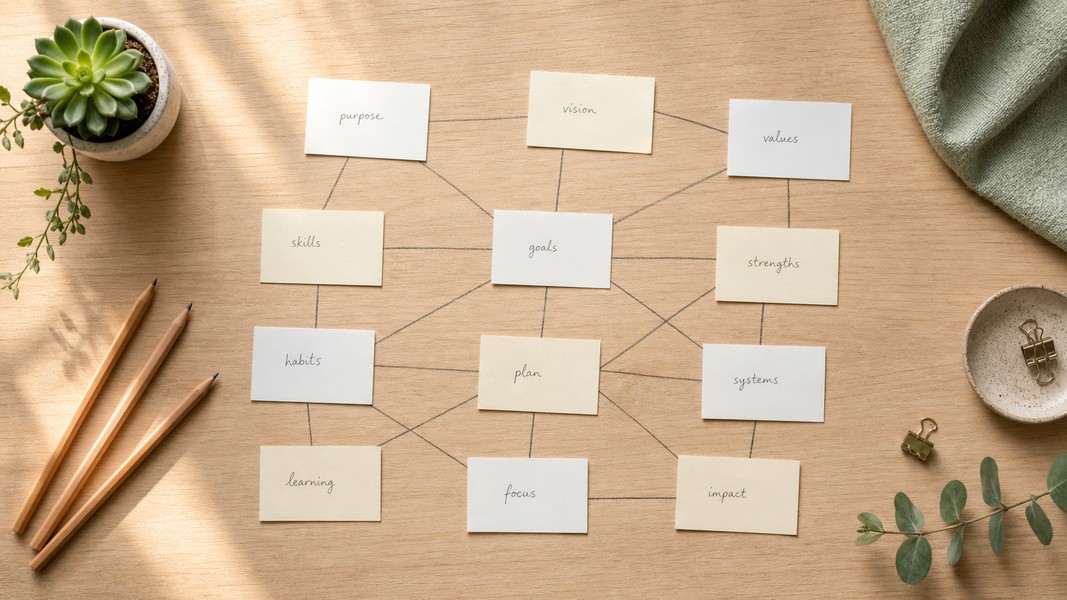
Zettelkasten: How to Build a Knowledge System
July 24, 2026
Learn how the Zettelkasten method works, why linked notes beat linear notebooks, and how to build your own knowledge system from scratch.


May 3, 2026
The best note-taking app for Mac depends entirely on how you work. For AI-powered capture that processes voice, PDFs, and video, Voice Memos leads the list. For distraction-free Markdown writing, Bear is the strongest option. If you need a shared workspace for teams, Notion covers it. And if you want zero setup with nothing to install, Apple Notes is already on your Mac and surprisingly capable.
This guide covers eight of the best note-taking apps for Mac available in 2026, with each one evaluated on its Mac experience, organization system, AI features, and the type of user it suits best. Whether you're replacing a tool that no longer fits your workflow or building a system from scratch, you'll find the right pick here.
| Rank | App | Best For | Key Feature |
|---|---|---|---|
| 1 | Voice Memos | AI capture and study tools | Audio, PDF, YouTube to notes |
| 2 | Bear | Minimalist Markdown writing | Tag-based, wikilinks, beautiful |
| 3 | Notion | Teams and complex projects | Databases, collaboration |
| 4 | Apple Notes | Free everyday capture | iCloud sync, no setup |
| 5 | Obsidian | Knowledge management | Local-first, graph view |
| 6 | Evernote | Web clipping and research | Best browser clipper |
| 7 | Craft | Mac-native document creation | Design-first, block editor |
| 8 | Notability | Handwriting and PDF markup | Audio-linked note review |
Choosing the best note-taking app for Mac means going beyond the feature list. The apps below were evaluated on four criteria.
Mac experience measures whether the app feels native on macOS, supports keyboard shortcuts and drag-and-drop, and responds quickly. Apps that run as thin web wrappers with sluggish performance score lower.
Capture speed looks at how quickly you can get a thought into the app. Any app that requires navigating a folder structure or creating a new document before you can type a word loses points here.
Organization and search covers tags, folders, backlinks, and how well the app handles a large note library. An app that works fine with 50 notes may become unusable with 5,000.
AI capabilities matter more now than ever. Apps that use AI to process content, extract action items, or generate study materials from your notes offer a genuine productivity advantage over those that treat AI as a toggle on text generation.
Voice Memos runs in any browser on Mac with no installation required. It's purpose-built for a specific workflow: take raw input in any form and turn it into something immediately usable.
The range of input types is what sets Voice Memos apart from every other app on this list. You can record voice directly in the app, upload a PDF, paste a YouTube URL, photograph handwritten notes with your phone's camera, or type text manually. The AI processes whatever you give it and returns organized, structured notes. For students, a recorded lecture becomes notes, flashcards, and quiz questions within minutes. For professionals, a recorded meeting becomes a structured summary with action items, follow-up reminders, and contact details automatically identified and extracted.
The transcription engine works in over 40 languages with automatic translation into your preferred language. Speaker detection identifies different voices in a recording, which is useful for multi-person meetings or interviews where attribution matters.
Study mode is where Voice Memos genuinely differentiates from general-purpose note apps. Four modes are built in: interactive quizzes that test your knowledge from captured content, flashcards with spaced repetition scheduling that adapts to what you're struggling with, a deep research mode that expands on your notes with additional context and sources, and mind maps that build visual concept relationships automatically. If you're a student using a Mac, this combination replaces multiple separate tools.
The automatic detection system scans every note for six action types: tasks, events, reminders, locations, contacts, and general notes. Nothing needs to be tagged manually; the AI identifies and categorizes them passively. A recorded client call surfaces the follow-up tasks and contact details without you touching a keyboard.
Voice Memos also includes dyslexic-friendly formatting, which restructures any captured content using formatting patterns shown to improve readability. It's the only note-taking app on this list with a purpose-built accessibility feature for dyslexic readers.
For Mac users, the browser-based approach means you're always on the latest version, notes sync instantly across every device you own, and there's nothing to install or update. The app works equally well in Chrome, Safari, and Firefox.
If you're new to AI note-taking tools and want to understand what to expect from any AI-powered app, see our overview of how AI note takers work before deciding.
Best for: Students who need a complete study workflow from capture to exam prep; professionals who record meetings and need organized output; anyone processing multiple content types including PDFs and video.
Drawbacks: Requires an internet connection; less suited for users who want a traditional folder-based note library without AI processing in the workflow.
Bear is a Markdown note-taking app built exclusively for Mac and iOS. If you write frequently and want a focused, distraction-free environment, Bear is one of the most polished tools available on the platform.
Organization in Bear works through tags rather than folders. You add hashtags anywhere in the body of a note and Bear automatically creates a nested structure from them. Writing #work/clients/acme in a note places it in a three-level hierarchy without any folder creation required. For users who've struggled to maintain rigid folder systems, the tag approach feels more natural and less like housekeeping.
The writing experience is Bear's defining quality. Markdown renders live as you type, with clean formatting for headers, code blocks, tables, and emphasis. Wikilinks let you connect notes to each other, which makes it possible to build a loosely connected knowledge base within the app. Themes are among the best-designed of any note app, ranging from clean light modes to warm dark options that reduce eye strain during long sessions.
Bear is Apple-ecosystem only. There's no web app and no Android version. If your workflow is Mac-first with some iPhone and iPad use, Bear's sync is seamless and the experience across devices is consistent. For users who also rely on Windows or Android devices, this is a hard limitation.
For an equivalent experience on tablet, the best iPad note-taking apps include Bear among the top picks for the same reasons it excels on Mac.
Best for: Writers, bloggers, and researchers who think in text and want a fast, clean writing environment; anyone who prefers tags over folders for organization.
Drawbacks: Apple-only with no web access; limited collaboration features; no built-in AI; importing from other apps can require manual cleanup.
Notion combines notes, databases, wikis, project boards, and documents in one workspace. For teams that share information and build structured knowledge bases together, Notion is hard to beat in terms of raw flexibility.
The database layer is Notion's standout feature. You can build a note database with custom properties: tags, dates, status fields, related items, and any other attribute you need. The same set of notes can be displayed as a table, a kanban board, a gallery, or a calendar, each view filtering and sorting independently. This matters for managing ongoing projects with many related notes and tasks that need to be seen in different contexts.
The learning curve is real. A blank Notion page offers no defaults; you build the structure yourself. New users often spend significant time designing their system rather than using it. For personal note-taking where speed of capture matters most, this overhead can become frustrating. For team use cases where the structure pays dividends over time, it's worth the investment.
The Mac desktop app runs well, with offline editing supported for pages you've loaded previously. Performance has improved over recent versions, though very large workspaces with complex databases can still slow things down.
Best for: Teams that need shared knowledge bases, project management, and documentation in one place; students managing multiple courses with interconnected resources; anyone who needs database features in their notes.
Drawbacks: High setup overhead; can feel bloated for quick personal notes; AI features require a separate add-on; the flexibility can become a liability without discipline.
Apple Notes requires no installation, no account setup beyond your existing Apple ID, and no payment. For many Mac users, it covers everything they need.
The app has grown significantly beyond its early minimal version. It now supports tags, smart folders that filter by criteria you define, tables, inline image embedding, password protection using your device passcode, and collaboration through shared notes with real-time co-editing. A recent addition brought audio recording with automatic transcripts to the app, which now puts it in partial competition with dedicated transcription tools for simple recording needs.
Search in Apple Notes is fast and handles text inside scanned documents and images, which is genuinely useful for digitized handwritten notes. Smart folders let you filter by tag, date, attachment type, or whether a note was shared with others.
The app integrates with Apple Intelligence on supported devices, adding text summarization, rewriting, and proofreading features. These are more basic than the AI processing in dedicated tools, but they're free and work without a subscription.
The main limitation is the Apple ecosystem lock-in. There's no web access and no Windows or Android support. If you use non-Apple devices, anything you put in Apple Notes stays inaccessible on those platforms.
Best for: Mac users who want a reliable, free option that works without any setup; everyday quick capture with automatic iPhone sync; anyone in an all-Apple household.
Drawbacks: Apple-only with no cross-platform access; formatting options are limited compared to dedicated apps; AI features are basic relative to specialized tools.
Obsidian stores every note as a plain text Markdown file on your hard drive. No cloud server, no proprietary format, no account required. If you care about owning your data and keeping it portable across any application, Obsidian is the strongest option available.
The app is built around bidirectional links. Every time you link one note to another using double brackets, Obsidian maps that relationship in a visual graph. Over time, the graph reveals conceptual connections you didn't consciously create. Researchers and academics use this approach to build a zettelkasten, a note-linking method where the value of the collection grows as notes connect to each other rather than sitting in isolated folders.
The plugin ecosystem is extensive. Community plugins cover spaced repetition, calendar views, daily notes, task management, canvas boards, and dozens of workflow-specific tools. Installing and configuring them requires some comfort with file paths and settings menus. The app rewards users who invest time in customization but isn't designed for users who want everything to work out of the box.
Local storage is both Obsidian's biggest strength and a potential friction point. Syncing between Mac and mobile devices requires either a paid Obsidian Sync add-on or manual setup through iCloud or Dropbox. For users who accept this trade-off, the privacy and data portability benefit is meaningful.
Best for: Researchers, academics, and knowledge workers building a long-term, connected notes system; users who prioritize data ownership and local storage; power users who want deep customization.
Drawbacks: Steeper learning curve than most apps; sync between devices requires extra setup; no built-in AI processing or study tools; less suited for quick capture.
Evernote defined the note-taking app category for a decade, and it still does one thing better than any other app on this list: save content from the web. The Evernote Web Clipper extension captures full pages, simplified articles, bookmarks, or screenshots with tags and notebooks applied before saving. For researchers who collect material from the web as part of their workflow, nothing else comes close.
The core app supports rich text editing, file attachments, document search that reads text inside PDFs and scanned images, and cross-platform sync across Mac, Windows, iOS, and Android. The cross-platform availability is an advantage for users who work on devices outside the Apple ecosystem.
Evernote went through a difficult period with ownership changes and pricing adjustments that damaged user trust. The product has stabilized, but it has lost momentum to newer tools that launched without the technical debt of an older architecture. Users coming from Evernote often cite the free tier limitations and subscription cost as primary reasons for switching.
Best for: Researchers and writers who clip large volumes of web content; cross-platform users who need notes on Windows and Android; users already invested in an Evernote note library.
Drawbacks: The free tier is now quite limited; pricing has increased relative to alternatives; the interface feels dated compared to newer apps; mobile performance has received mixed reviews.
Craft is a Mac and iOS app built to feel like a native Apple product. It earned an Apple Design Award for its interface, and the recognition reflects genuine quality in the details: typography, spacing, animations, and the overall feel of creating a document in the app.
The editor uses a block-based structure where each paragraph, heading, image, or embed is an independent element you can reorder, nest, or convert to a different type. This makes it easy to reorganize notes and build polished shareable documents from within the app rather than exporting to another tool.
Craft supports collaboration with shared spaces where multiple people edit the same document simultaneously. For professionals who create client-facing documents or team wikis, the visual quality of Craft's output separates it from apps that produce basic plain-text notes. AI features in recent versions handle summarization, text generation, and content expansion within the document context.
The app's focus on document creation means it's less optimized for rapid capture or large note libraries with complex organization needs. Creating a quick note in Craft requires more steps than in Apple Notes or Bear. Think of Craft as a tool for when you want the output to look good, not just store information.
Best for: Mac users who create polished documents alongside their notes; professionals who share notes externally as formatted documents; anyone who values design quality in their workspace.
Drawbacks: Less suited for rapid capture or heavy organizational needs; AI features focus on writing assistance rather than content processing; requires Apple devices.
Notability is the standard recommendation for students who mix typed notes with handwritten annotations and PDF markup. It's primarily known as an iPad app with Apple Pencil support, but the Mac version provides access to your full notebook library and handles typed notes, audio recordings, and PDF annotation directly.
The app's signature feature is audio-linked notes. When you record audio while writing, Notability ties every pen stroke and typed word to the exact timestamp in the recording. During review, tapping any note plays back what was being said at that moment. For lectures where the connection between a written abbreviation and its spoken context matters, this makes review sessions significantly more efficient than working from notes alone.
PDF annotation in Notability is thorough, with support for highlighting, underlining, drawing, and adding typed text over documents. Students who annotate readings regularly will find it faster than importing PDFs into a general-purpose notes app that wasn't designed for this workflow.
The Mac experience is functional rather than the app's primary focus. Users who primarily work on Mac may find the interface feels designed around touch input. The real strength of Notability appears on iPad with an Apple Pencil, and the Mac app is most useful for review and organization of notes you've created on your tablet.
Best for: Students who annotate PDFs and lecture slides; Apple Pencil users who mix handwriting with audio recording; anyone who wants to replay a lecture while reviewing their notes.
Drawbacks: Mac experience is secondary to iPad; less suited for text-heavy knowledge work; library organization is more limited than dedicated knowledge base tools.
Before committing to an app, four questions narrow the field quickly.
How do you capture? If you record voice, process documents, or work with multiple content types, prioritize apps with broad input support. Voice Memos handles the widest range. If you type everything, the writing experience matters more, and Bear or Craft are the stronger picks. If you annotate PDFs by hand, Notability is in a different category from the rest.
How do you organize? Obsidian uses links and a graph to connect notes. Bear uses tags in the body of notes. Notion uses databases with custom properties. Apple Notes uses folders and tags together. None of these is better than the others in absolute terms; the right system is the one that matches how you naturally think about categorizing information.
Do you need collaboration? Notion and Craft have strong shared workspace features. Bear and Obsidian are built for single users. Apple Notes supports shared notes with real-time editing but lacks the database layer of Notion.
How important is AI? Voice Memos leads here with multi-modal content processing, automatic action detection, and four built-in study modes. Apple Notes and Craft include basic AI writing assistance. Evernote and Notability have limited AI features. Obsidian and Bear have no built-in AI.
There's no single best note-taking app for Mac because different workflows need different tools. Apple Notes handles everyday quick capture without setup. Bear gives writers a focused, beautiful environment. Notion works best when teams need shared structure and databases. Obsidian is the right pick if you want a private, local knowledge base with deep connections between notes.
For students and professionals who need to do more than store text, Voice Memos takes a different approach: it processes any input you give it and returns something you can act on immediately. The gap between capturing a lecture and having review materials ready closes from hours to minutes.
Discover more insights and tips to enhance your productivity
Learn how the Zettelkasten method works, why linked notes beat linear notebooks, and how to build your own knowledge system from scratch.
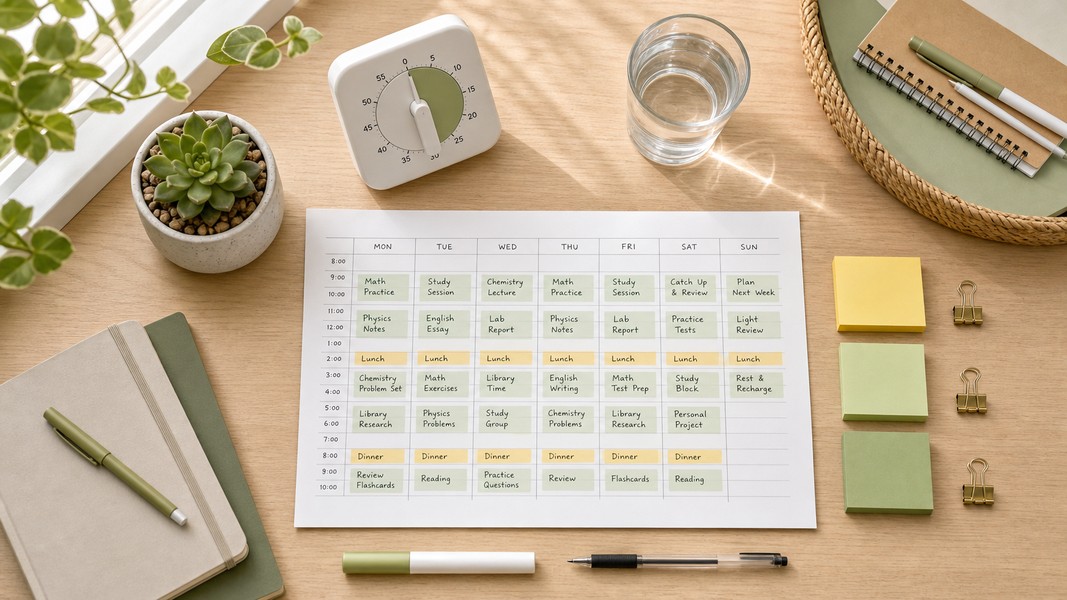
Struggling to manage your time as a student? These 7 evidence-backed tactics fix the real reasons students fall behind and waste hours.

Fathom AI is great for free Zoom notes, but it has real limits. Here are the best fathom ai alternatives for meetings, students, and multi-format capture.