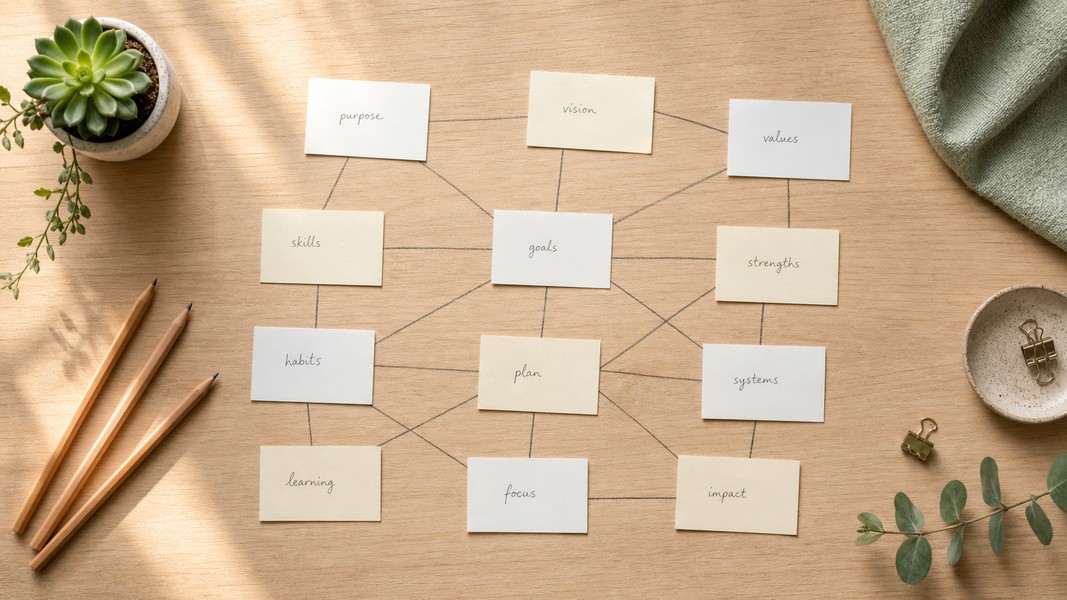
Zettelkasten: How to Build a Knowledge System
July 24, 2026
Learn how the Zettelkasten method works, why linked notes beat linear notebooks, and how to build your own knowledge system from scratch.


March 26, 2026
A cornell notes template divides your page into three labeled sections: a narrow cue column on the left, a wider note-taking area on the right, and a summary box at the bottom. That structure is the whole system. Getting the template right means you spend lecture time capturing ideas, not configuring layouts.
This guide gives you free templates for Google Docs, Word, and PDF, explains how to fill each section correctly, and covers when digital AI-powered notes make more sense than any static template.
If you want to understand the method itself before grabbing a template, read how the Cornell method works first.
The layout has three sections, each with a specific job. The note-taking area takes up the right two-thirds of the page, around 6 inches wide on a standard 8.5 x 11 sheet. You write lecture notes here in real time, using abbreviations and your own phrasing rather than copying every word.
The cue column runs down the left side, about 2.5 inches wide. You fill it in after class with keywords, questions, or short prompts that correspond to what's in the notes area. This column is the heart of the review process: cover the right side, and you're left with a set of self-quiz prompts that force active recall instead of passive re-reading.
The summary box sits at the bottom, about 2 inches tall. You write a 2-5 sentence synthesis of the page's main idea in your own words after the lecture. This is the step most students skip, which is also the step that matters most for long-term retention.
Good templates use lined sections for readability, portrait orientation for standard paper flow, and flexible column widths so you can adjust them for different subjects. A rigid, locked layout with merged cells makes the template harder to adapt and edit, especially when you're working digitally.
Google Docs is one of the most practical platforms for Cornell notes because files sync instantly, are shareable with classmates, and work on any device.
To build a template, open a blank document and go to Insert > Table. Create a 2x1 table for the columns, then add a second row spanning the full width for the summary box. Set the left column to roughly 30% of page width for cues and the right column to 70% for notes. Adjust the bottom row to about 2 inches tall for the summary. Add a header above the table for the date, class, and topic.
Once you have the structure, make a master copy in your Google Drive so every new session starts from the same layout. Label the three sections (Cues, Notes, Summary) in a light gray font so the labels are visible but don't compete with your actual writing.
You can also search "Cornell Notes template" directly in the Google Docs template gallery. Several community-built versions appear there without requiring any setup, and you can make a copy from the gallery in one click.
For typed notes during fast lectures, Google Docs also handles split-screen mode well: keep your template on the left and the professor's slides on the right so you're referencing material while writing. The real-time autosave prevents the data loss that comes with local files.
Word handles Cornell templates with precise control over column widths and row heights, which makes it better than Google Docs for students who prefer offline access or need to submit formatted documents.
Go to Insert > Table and start with a 2x30 grid to create lined rows across both columns. Set the left column to 2.5 inches and the right to 6 inches using the table properties menu. Add a final row that spans the full page width at about 2 inches tall for the summary. Use "Distribute Rows Evenly" to space the lines consistently, then add borders and light shading to make the cue section visually distinct from the notes area.
The Incompetech generator creates printable Cornell notes PDFs you can open in Word for further editing. It lets you configure the column ratio, line spacing, and page size before downloading. This is faster than building from scratch if you want a clean starting point.
Save your finished template as a Word template file (.dotx) so every new note-taking session opens the same layout without overwriting your master. This also lets you share the template with study group members easily.
Paper Cornell notes remain a strong option for subjects that involve diagrams, math, or fast-moving lectures where typing creates distance between you and the material.
Research on handwriting consistently finds that writing by hand promotes deeper processing than typing because you're forced to rephrase and condense rather than transcribe verbatim. The Cornell format amplifies this effect by requiring you to distill notes into cue-column keywords and a bottom summary shortly after the lecture.
For a printable Cornell notes PDF, you want either a lined version (for writing-heavy subjects like history, literature, or law) or a blank version (for diagrams, chemistry equations, or any content that doesn't fit into lines). Graph-ruled versions work well for math and engineering where spatial notation matters.
Standard dimensions for an 8.5 x 11 printable template: 2.5 inches for the cue column, 6 inches for the notes area, 2 inches for the summary box, with 29 lined rows in the notes section. Smaller formats like A5 (148 x 210 mm) work well as notebook inserts if you prefer a compact layout that fits inside a ring binder.
For the most flexible printable options, the Incompetech generator linked above lets you configure spacing, margins, and column proportions before export. Print a few variations on regular paper and test what works for your handwriting size before committing to a full semester's supply.
Notion users implement Cornell notes through page templates with toggle blocks, synced databases, or custom column layouts built on Notion's block editor.
A simple Notion Cornell setup uses a two-column layout for the cue and notes sections, accessible via the /columns command, then a text block below for the summary. Toggle blocks work especially well for cues: write the question in the toggle header and hide your answer below, creating a built-in review mechanism you can use without covering text manually.
Notion's database approach suits students who want to tag notes by course, link to related topics, or track review dates. You can add properties for subject, lecture date, and review status, which turns a single note into part of a searchable knowledge system.
The main tradeoff is setup time. Building a proper Notion Cornell template takes longer than opening a Google Docs table, and Notion pages with dense text can lag on lower-powered devices. For students already living in Notion, building a Cornell template there makes sense. For everyone else, Google Docs or a dedicated note-taking app is faster to use during an actual lecture.
Most students use the template incorrectly by treating all three sections as one continuous page. The method has three distinct phases: during the lecture, right after, and during review.
During the lecture, use the notes area to capture main ideas in your own words. Abbreviate freely, draw quick diagrams, and skip verbatim transcription. The goal is to keep up with the speaker while filtering for concepts rather than reproducing everything said. Leave space between sections so you can add to them later.
Right after class (ideally the same day), go back through your notes and write cue words or questions in the left column. Each cue should correspond to a chunk of notes on the right. This is the step most students skip, and it's the step that turns raw notes into a review tool. Questions work better than keywords because they force you to retrieve information rather than just recognize it.
The 5 R's of the Cornell system give you a complete framework: Record main ideas in the notes column, Reduce them to keywords or questions in the cues, Recite by covering the notes and answering from cues alone, Reflect on connections and implications in the summary box, and Review regularly using the cue column for self-quizzing. The system was developed at Cornell University in the 1950s and remains one of the most widely studied structured note formats.
Write the summary box last, in 2-5 sentences that capture the page's central idea in your own words. Students who complete the summary box consistently show better exam performance because the act of synthesis forces you to process information at a conceptual level rather than a detail level.
Static templates require you to fill in every section manually. For students who record lectures or work from YouTube videos, AI note-takers handle much of that process automatically.
Voice Memos processes audio recordings, PDFs, YouTube URLs, and camera scans, then outputs structured notes that follow the same logic as Cornell: key concepts are extracted and organized, action items and follow-up reminders are identified separately, and a summary of the content is generated without manual input. You can then convert those structured notes into flashcard decks or quiz questions in one step, extending the Cornell review cycle beyond what any paper template allows.
This approach works best when you have recorded lectures, uploaded readings, or video content to process. For whiteboard-heavy classes or sessions where you prefer the tactile benefit of handwriting, a paper or digital Cornell template is still the right tool. Using both depending on context gives you the best of each approach.
Voice Memos also supports 40+ languages, which makes the AI workflow useful for international students processing lectures in a second language. The app can transcribe in the lecture language and translate to your native language in the same step.
To try it, generate structured notes automatically from your next lecture recording and compare the output to what you'd fill into a manual Cornell template.
The right Cornell notes template depends on your workflow and subject. Google Docs works for typed, shareable notes during class. Word gives you precise formatting control for printed or submitted documents. Printable PDFs suit handwriting-focused subjects where tactile writing supports retention. Notion fits students already building a connected knowledge system. And AI tools generate the Cornell structure automatically from recordings, removing the manual setup entirely.
Whichever format you use, the key is completing all three sections: notes during the lecture, cues right after, and a summary on review. The template is only as useful as the habit behind it.
Discover more insights and tips to enhance your productivity
Learn how the Zettelkasten method works, why linked notes beat linear notebooks, and how to build your own knowledge system from scratch.
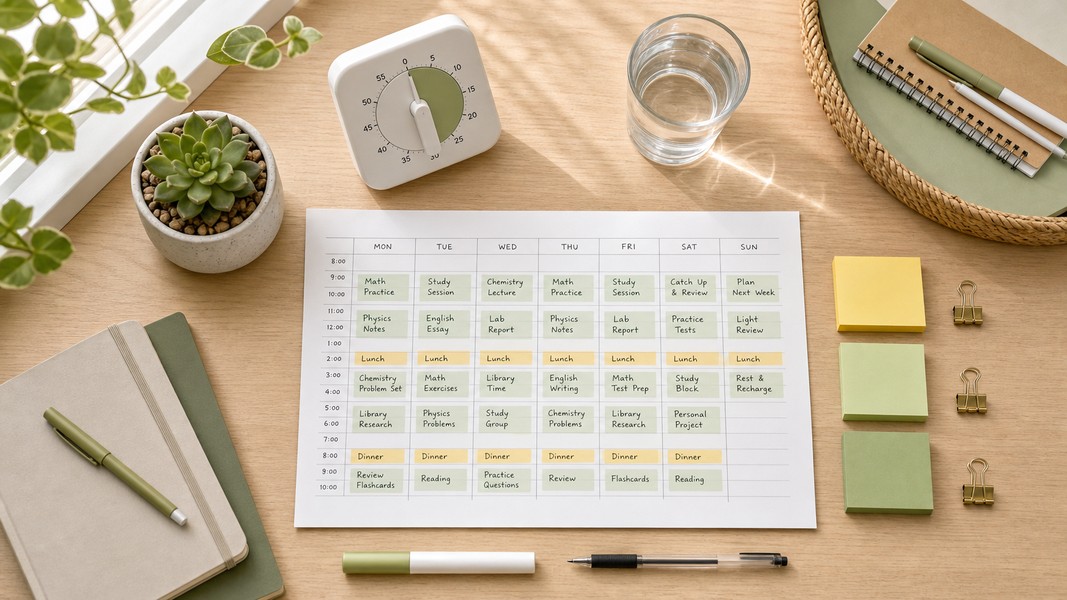
Struggling to manage your time as a student? These 7 evidence-backed tactics fix the real reasons students fall behind and waste hours.

Fathom AI is great for free Zoom notes, but it has real limits. Here are the best fathom ai alternatives for meetings, students, and multi-format capture.