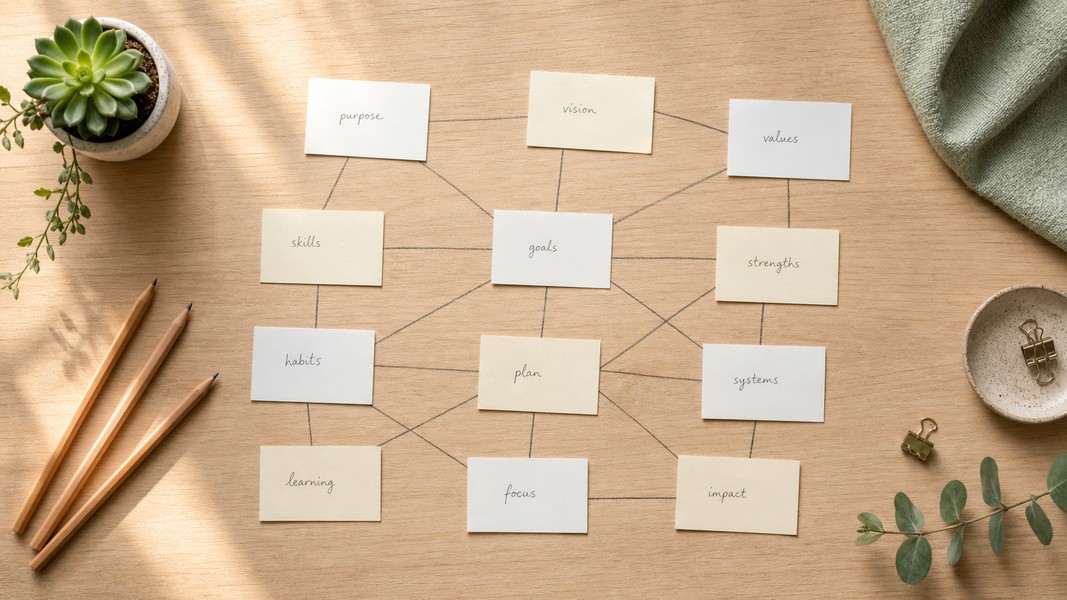
Zettelkasten: How to Build a Knowledge System
July 24, 2026
Learn how the Zettelkasten method works, why linked notes beat linear notebooks, and how to build your own knowledge system from scratch.
June 14, 2026
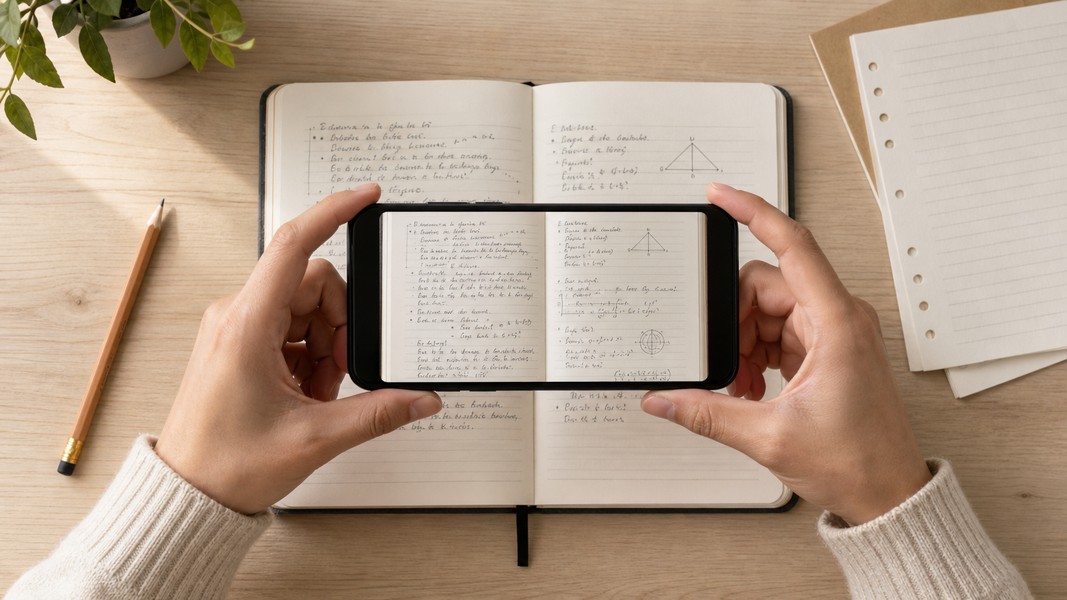
Converting image to text turns a photo of printed or handwritten content into machine-readable, editable text. Using OCR (optical character recognition) combined with modern AI, tools can extract text from handwritten notes, scanned documents, whiteboard photos, and virtually any image containing readable content.
The challenge is that not all images convert equally well, and what you do with the text after extraction matters just as much as the conversion itself. Raw text sitting in a document isn't inherently useful. The goal is to get that content organized, searchable, and actionable. This guide covers the main conversion methods, how to get better results from each, and how to make extracted text actually work for you.
OCR systems analyze an image through several stages: detecting where text exists, segmenting content into lines and words, then recognizing each character and mapping it to digital output.
Traditional OCR used rule-based and pattern-matching methods, which worked reliably on clean printed text but struggled with handwriting and imperfect scans. Modern AI-powered OCR takes a different approach, using deep learning models trained on large datasets of real-world notes and documents. These systems don't just pattern-match characters. They apply language models to interpret context and correct likely errors based on surrounding words.
The result is a meaningful improvement, especially for messy or cursive handwriting. For printed text under good lighting conditions, modern OCR reaches near-perfect accuracy. For handwriting, advanced AI systems can reach 85-99% accuracy, depending on legibility and image quality.
The right method depends on what you're scanning and what you need the output for.
Both iOS and Android have native tools that handle printed text well. Apple's Live Text, built into the Camera app, lets you tap text in any photo to copy, translate, or share it. Point your camera at a printed page and iOS highlights the text automatically.
On Android, Google Lens works similarly: open the camera, point it at text, tap to select it, and copy or search the result. Both options are fast, require no extra apps, and handle printed text accurately in most situations.
These built-in tools are good for quick, single-image needs. They're less suited for processing large volumes of pages or for handwriting that isn't very clear.
Dedicated scanning apps give you more control over output format and work better for multi-page documents. Microsoft Lens has dedicated whiteboard and document modes that automatically straighten edges, correct perspective, and enhance contrast before running OCR. You can export directly to Word, PDF, or OneNote.
Adobe Scan is similarly strong for professional documents and forms, converting scans into searchable PDFs with copyable text. For developers and automated workflows, Tesseract is the leading open-source OCR engine embedded in many tools and products behind the scenes.
These dedicated apps work best for printed content with consistent layouts. When handwriting or mixed content enters the picture, accuracy varies and the right tool choice becomes more important.
The most capable option for students and professionals is an AI note app that chains OCR with language understanding. These tools don't just extract text, they process it. A photo of lecture notes goes through image recognition, then the AI structures the content, identifies key concepts, and can generate study materials automatically.
Voice Memos includes a camera scan feature that captures this workflow in one step. You photograph a page of handwritten notes, and the app transcribes the text and organizes it into a structured note. From there, you can generate quiz questions, create flashcards using spaced repetition, or build a mind map from the same content. The scan becomes a live, workable study document rather than a static image.
Handwriting is where most image-to-text tools struggle, and where your choice of tool matters most.
For notes taken digitally on an iPad or tablet, GoodNotes and Notability both offer lasso-based handwriting conversion with strong accuracy. You select the handwriting with a lasso tool, tap convert, and the text appears inline. Apple Notes on iOS handles this for Apple Pencil users through "Copy as Text," and OneNote on Windows includes "Ink to Text" conversion integrated into the Microsoft 365 workflow.
For paper notes, the challenge is greater. Cursive and rushed handwriting introduces inconsistent letter shapes and merged strokes that segmentation algorithms struggle with. Research on handwriting OCR identifies the same key factors consistently: neatness, image resolution, and whether the tool was trained on similar writing styles.
Apps built specifically for handwriting conversion tend to outperform general OCR tools on paper notes. They're trained on handwriting datasets and optimized for the kinds of inconsistencies that appear in real lecture notes, not just clean typed fonts.
Practical tip: if you're taking paper notes and plan to scan them, write key terms and headings more clearly even if the rest is messier. OCR tools anchor around recognizable words and use context to fill in gaps. A clearly written heading helps the algorithm understand what the surrounding content is about.
Image quality directly determines how well any OCR tool performs. A few consistent practices make a significant difference.
Lighting matters most. Even lighting without shadows across the page is the single biggest factor in output accuracy. Avoid shooting near windows where one side of the page is in direct sunlight while the other is in shadow. For whiteboards, stand centered and use steady indoor lighting rather than relying on natural light from one direction.
Hold the camera parallel to the surface you're scanning. Angling the camera creates perspective distortion that forces OCR to correct geometry before recognizing characters, and imperfect correction leads to errors. Fill the frame with the document, leaving a small border on each side for the app to detect edges.
For whiteboard content, use dark markers. High contrast between the text and background matters more than marker color, and the difference in OCR accuracy between a dark blue marker and a yellow one on a whiteboard is significant. Keep important content away from the edges, where distortion is usually worst.
Resolution is rarely the limiting factor with modern phones. The main issue is motion blur. Rest your elbows against your body or brace against a wall to keep the shot stable.
Even with good capture conditions, certain types of content are harder for OCR:
For content with numbers, formulas, or codes, always review OCR output before using it. The surrounding text is often fine, but these character types are where errors cluster.
If you're using an AI-powered note app, post-processing largely handles common errors. Language models understand context well enough to correct obvious misreads automatically. For raw OCR output, a quick skim before passing the text to a summarization or flashcard tool prevents errors from compounding.
Raw extracted text is just the starting point. How you use it determines the actual value of the conversion.
For students, the most effective approach is to convert extracted text into active study materials immediately. If you scanned a lecture's handwritten notes, you're already ahead of manual transcription. But passive review of text doesn't build retention. Turning those notes into flashcards or practice quizzes using AI takes an extra minute and significantly increases how much you retain from that session.
For professionals who scan meeting whiteboards, the extracted text gives you the raw material for action items and follow-up summaries. AI tools can read OCR'd output and identify tasks, deadlines, and decisions without you having to re-read and restructure everything manually.
Voice Memos supports both workflows in the same interface. Students can photograph handwritten notes and go directly to quiz mode or spaced repetition flashcards. Professionals can capture whiteboard photos alongside voice recordings from the same meeting, with the app organizing both into a unified note with extracted action items.
The scanning step eliminates manual transcription. But the real value comes from what the AI does with the text once it exists in a structured, digital form.
If your workflow involves voice alongside images, combining camera scan with audio recording gives you a complete capture system. Understanding how to transcribe audio to text covers the audio half of that workflow.
Image to text conversion has moved well beyond basic character recognition. Modern tools combine OCR with language understanding to handle real-world conditions: messy handwriting, angled whiteboard photos, and mixed content on the same page.
For most printed text, your phone's built-in camera features are enough. Handwritten notes and complex documents need dedicated OCR apps or AI-powered tools for reliable results. The practical gap between a good scan and a bad one usually comes down to lighting, angle, and choosing a tool trained on the type of content you're converting.
What you do after extraction determines the actual value. Text organized into flashcards, structured summaries, or action item lists is where the work gets done. The scanning step just gets you there faster.
Discover more insights and tips to enhance your productivity
Learn how the Zettelkasten method works, why linked notes beat linear notebooks, and how to build your own knowledge system from scratch.
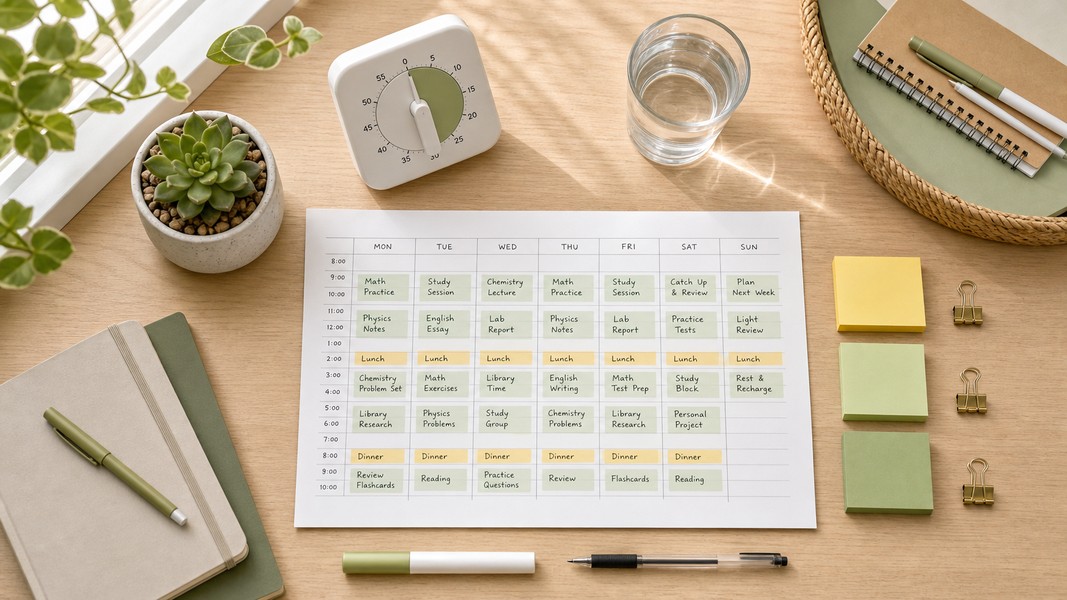
Struggling to manage your time as a student? These 7 evidence-backed tactics fix the real reasons students fall behind and waste hours.
Fathom AI is great for free Zoom notes, but it has real limits. Here are the best fathom ai alternatives for meetings, students, and multi-format capture.